
Crop Image
Choose the exact area to keep and crop PNG, JPG, JPEG, or WebP images with common ratios, rotation, flipping, and precise pixel controls.
01 Upload image
Choose one PNG, JPG, JPEG, or WebP image up to 10 MB.
PNG, JPG, JPEG, WebP · up to 10 MB
Crop settings
Choose a ratio, transform the image, and set the export format.
Choose crop ratio
Start freeform or lock the selection to a common ratio.
Adjust image
Rotate or flip the preview before cropping.
Precise crop settings
Set X, Y, width, and height using image pixels.
Precise crop settings
Output settings
Choose a format and quality for the cropped file.
Crop preview
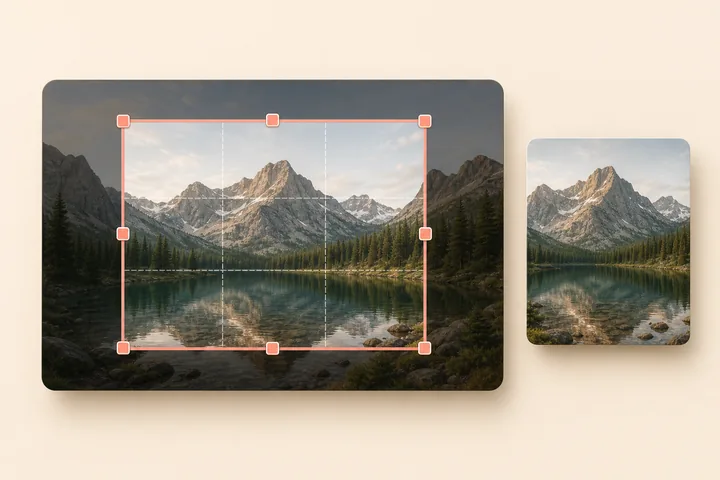
Upload an image to start cropping
The interactive crop frame will appear here after you choose an image.
How it works
Upload an image
Choose a PNG, JPG, JPEG, or WebP image from your device.
Adjust the crop area
Choose a ratio, then move or resize the crop frame to keep the right composition.
Preview and download
Generate the cropped image and download it in the format you need.
Useful for
Avatars and profiles
Prepare square or portrait crops for accounts and team pages.
Product composition
Keep the product centered and remove distracting edges.
Social media images
Match common landscape, portrait, and square ratios.
Blog and OG covers
Build a focused crop for article and social share artwork.
Documents and screenshots
Remove browser chrome, blank margins, or extra interface areas.
Clean extra scenery
Tighten composition without changing the crop dimensions afterward.
Local processing, privacy first
Cropping and export happen in this browser. Your image is not sent to our servers.
No image upload
The selected image remains on this device while you crop it.
Fast result
Generate the final crop without waiting for an upload.
Private images
Useful for personal, product, document, and confidential screenshots.
Frequently asked questions
Cropping removes areas outside your selected rectangle. Resizing changes the pixel dimensions of the complete image or crop.
Cropping keeps pixels inside the selected area. JPG and WebP export quality can affect compression, while PNG preserves transparent pixels.
Yes. Choose square, landscape, portrait, photography, original, or a custom positive ratio.
Yes. Open precise crop settings and set X, Y, width, and height. The crop frame updates from the same values.
Yes. Export as PNG or WebP to preserve transparent areas. JPG uses a white background because it does not support transparency.
No. This cropper decodes, transforms, crops, and exports the image in your browser.