
Transparent PNG Optimizer
Remove backgrounds, trim transparent edges, resize, and convert to WebP while keeping clear alpha edges and smaller files.
Upload image
Choose a PNG, JPG, JPEG, or WebP image up to 10 MB.
Best for transparent logos, icons, product cutouts, and design assets.
Optimization settings
Control output format, max width, quality, and transparent edge cleanup.
Optimization settings
Set the exported transparent file before generating the optimized image.
Optimization goal
Pick a common transparent image scenario to fill recommended values.
Current preview
Compare the original and optimized transparent output before download.
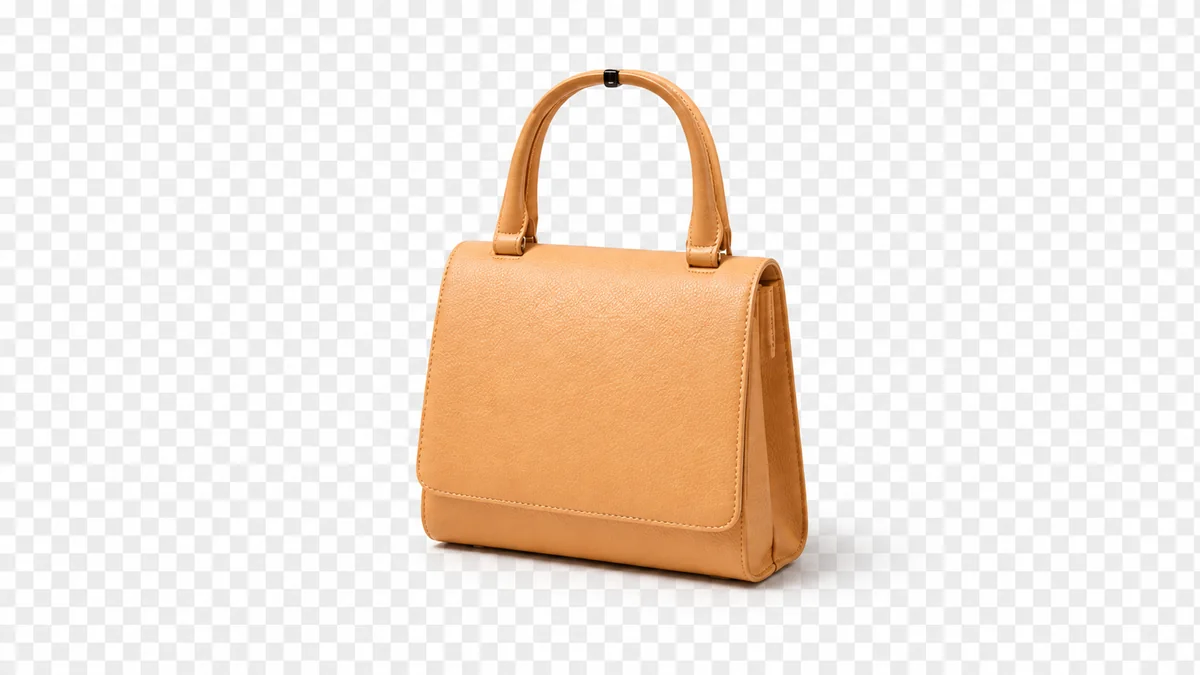
- Dimensions
- 1920 x 1280px1200 x 800px
- Format
- PNGWebP
- Quality
- 88%
- File size
- 2.45 MB456 KB
The image is only used for this task. Background removal may use cloud processing; trim, resize, compression, and export run in the browser and are not permanently stored.
How it works
Upload image
Start with a PNG, JPG, JPEG, or WebP file.
Set optimization
Choose target width, format, quality, and transparent edge cleanup.
Download optimized image
Preview the result and download the transparent file.
Useful for
Blog images
Keep transparent illustrations lighter for article pages.
Social sharing
Prepare clear Open Graph and campaign visuals.
E-commerce sites
Optimize transparent product cutouts for storefronts.
Company websites
Clean logos, partner marks, and brand assets.
Mobile optimization
Reduce transparent image weight for mobile views.
Design assets
Trim empty alpha space before handing files to design tools.
Local-first, reliable processing
The workflow keeps transparent image handling close to your browser whenever possible and only uses cloud processing for the cutout step.
No permanent storage
Processed files are used for the current task and are not kept as public assets.
Keep alpha channel
PNG and WebP exports preserve transparent backgrounds.
WebP support
Create smaller transparent WebP files when the browser supports export.
High-quality output
Quality and edge controls help balance clarity with file size.
FAQ
No. The workflow keeps the alpha channel in PNG and WebP outputs so the background remains transparent.
WebP can compress transparent image data more efficiently than PNG, especially for photos or complex product cutouts.
You can upload PNG, JPG, JPEG, and WebP images. Transparent outputs are exported as PNG, WebP, or the current transparent pipeline format.
Yes. Set a maximum width or choose a preset goal, and the tool keeps the image proportional.
No public file is permanently stored. Background removal may use cloud processing for the task, while later optimization runs in the browser.
PNG keeps lossless edges, while WebP quality can be adjusted. Higher quality gives sharper edges and usually a larger file.